 Tastiana
QR code menus guests actually like: a guide for restaurants
Why so many QR code menus frustrate guests, and how to set up a restaurant QR code that opens a menu people can read, search and book from.
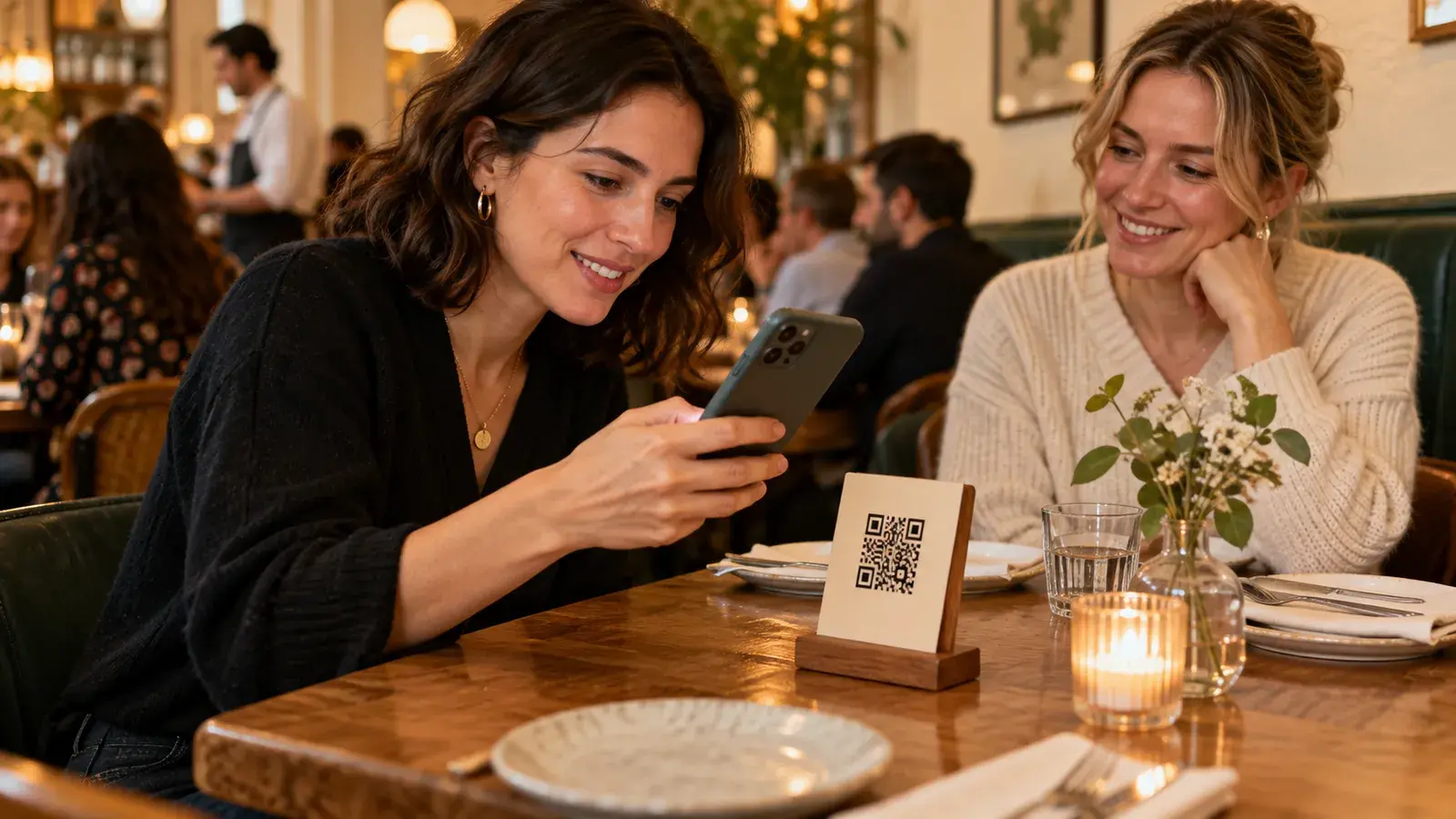
A guest sits down, scans the QR code on the table and waits. A PDF slowly appears: a photo of the printed menu, made for an A4 page, now squeezed onto a phone. They pinch, zoom and scroll sideways to read a price, then hunt for the drinks, which turn out to be a separate file. The QR code worked perfectly. What it opened did not.
That is why QR code menus have a mixed reputation, and why many restaurants quietly went back to paper. But the QR code itself is just a shortcut. Point it at a menu that is made for a phone, and it becomes one of the most useful things on your table.
Why QR code menus got a bad name
Most QR code menus were set up in a hurry, when restaurants needed a contactless menu overnight. The quickest fix was to take the menu that already existed, usually a PDF made for printing, and put a QR code in front of it. That fix is still on a lot of tables, and it causes the same problems every evening:
- Tiny text. A page designed for A4 shrinks to a few centimetres on a phone, so every guest has to zoom.
- Slow to open. A large PDF or photo takes a while on mobile data, and longer in a basement or a busy city centre.
- Hard to find things. Food, drinks and desserts sit in separate files, and there is no way to search for a dish.
- Extra steps. Some menus ask guests to download an app, accept a wall of cookies or sign up before they can see a single dish.
- Hard to read in the room. Dim lighting and screen glare make small grey text even harder to read.
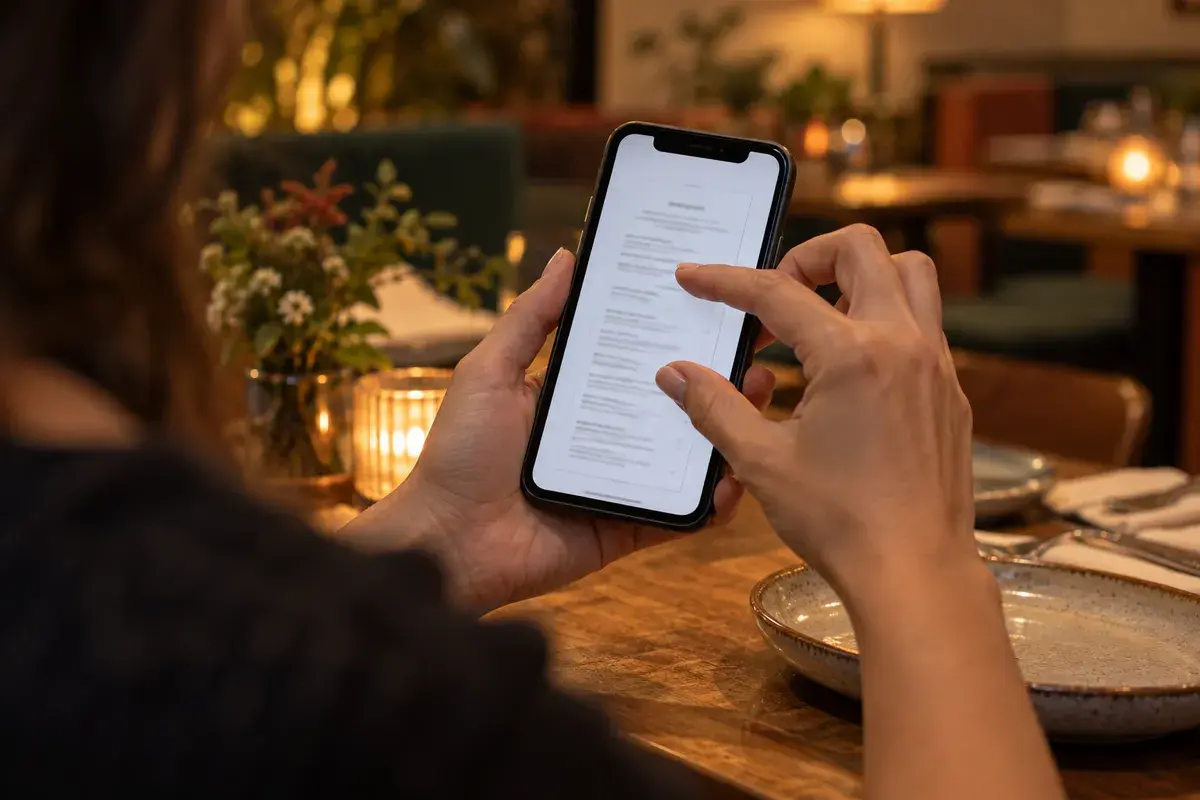
None of this is the QR code's fault. It is what happens when a menu made for paper is opened on a phone.
What a good QR code menu does
A QR code menu guests actually like feels less like opening a document and more like using a well-made app. Whatever tool you use, check it against this list:
- It opens straight away, in the phone's browser. No app to download, no sign-up and nothing to accept before the menu appears.
- It reads without zooming. Real text, sized for a phone, with strong contrast, so it works on a dim terrace as well as at lunchtime.
- The whole menu is in one place. Food, drinks and desserts, with sections guests can jump between and a search for when they already know what they want.
- Prices and dietary labels sit next to each dish. Exactly as they appear on your printed menu, with nothing left for guests to guess.
- It loads quickly on a weak signal. A light web page opens in a moment where a heavy PDF keeps guests waiting.
- It speaks your guests' language. If you welcome international visitors, an English version helps them choose with confidence.
- It leads somewhere useful. Opening hours, directions and a way to book the next visit are one tap away.
- It stays up to date. When a dish or a price changes, the menu behind the QR code changes too, without reprinting anything.
How to set up a QR code menu, step by step
1. Put your menu on a page made for phones
Start with the menu itself, not the code. A web page that reads well on a phone beats a PDF every time: text reflows to the screen, guests can search, and the page loads quickly. If your menu only exists as a PDF today, that is the first thing to change.
2. Point the QR code at an address you control
A printed QR code lives on your tables for years, so the address inside it should never break. Use a link on your own website or in a service you trust, and avoid generators that send scans through their own short link: some of them stop working when a free trial ends, and every code on every table stops with them. A free QR code menu is only free if the code still works next year.
3. Test before you print
Scan the code with both an iPhone and an Android phone, from where a guest actually sits, in your real evening lighting. Check that the menu opens at the top, that the text is readable without zooming and that the booking link works.
4. Print it so it scans easily
- Size. A common rule of thumb is a code about one tenth as wide as the distance it is scanned from, so a table card needs at least 2–3 cm (about an inch). Bigger is safer.
- Contrast. Dark code on a light background, with a clear white border around it.
- Finish. A matte surface avoids reflections from candles and ceiling lights.
- A few words. "Scan for the menu" tells guests what they will get before they lift their phone.
5. Put it where guests look
Table cards and the back of a printed menu are obvious places. A code in the window lets passers-by check the menu before they come in, and one at the takeaway counter saves guests a queue for a paper menu.
6. Use the same link everywhere
The page behind your QR code is also your best menu link elsewhere: in your Google Business Profile, your Instagram bio and on your website. One menu, kept up to date in one place, everywhere guests look for it.
Already have QR codes on your tables?
You usually do not need to reprint them. If the code opens an address on your own website, ask whoever looks after the site to point that address to your new menu page. If it opens a QR code service, change the destination in that service. Guests keep scanning the same code and simply land on a better menu.
Keep the human touch
A QR code menu works best alongside your team, not instead of it. Staff still welcome guests, recommend dishes and answer questions, and a good digital menu gives them more time to do that. Keep a few printed menus for guests who prefer paper or have no phone at hand. And for allergies, the menu's labels are a starting point: guests with an allergy should always confirm with your staff, because a label cannot cover every detail of the kitchen.
How Tastiana does it
Tastiana turns the menu already on your website, PDFs included, into an interactive menu made for phones. Its QR code opens the full menu with search, exact prices and dietary labels, help choosing a dish and your booking link, in your own language and in English. You download the code from your dashboard for print, it stays the same when your menu changes, and you can see how many guests open the menu from the table. Scan or open the example menu to see what your guests would see.
Questions restaurants ask
Do guests need an app to scan a QR code menu?
No. The cameras on current iPhones and Android phones read QR codes directly, and a good QR code menu opens in the phone's browser without an app or a sign-up.
Should we still keep printed menus?
Yes, keep a few. Some guests prefer paper or have no phone at hand, and a printed copy is a small courtesy that costs little.
How big should a table QR code be?
Large enough to scan from where a guest sits. A common rule of thumb is about one tenth of the scanning distance, so at least 2–3 cm (about an inch) on a table card. Test it in your own lighting before printing.
Can a QR code menu show allergens?
It can show the dietary and allergen labels from your menu next to each dish. Guests with an allergy should still confirm with your staff, because labels cannot cover every detail of the kitchen.